After authenticating a merchant, open the reader settings to pair a supported Bluetooth card reader. The examples below run in your app’s UIViewController.
Present card reader settings
Open the SDK’s reader settings so the merchant can find and select a nearby Bluetooth reader. The SDK remembers the selected reader for later payments.
This screen is optional: if no reader is saved when checkout starts, the SDK asks the merchant to select one.
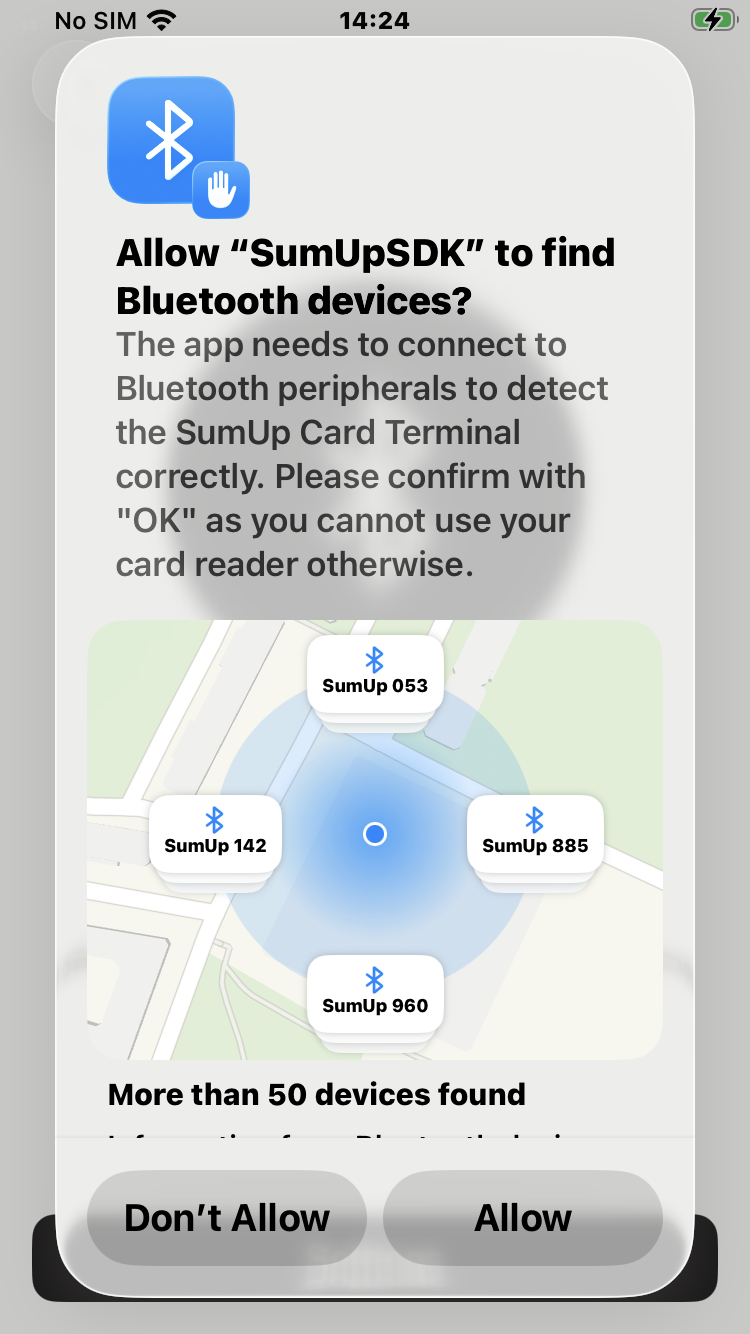
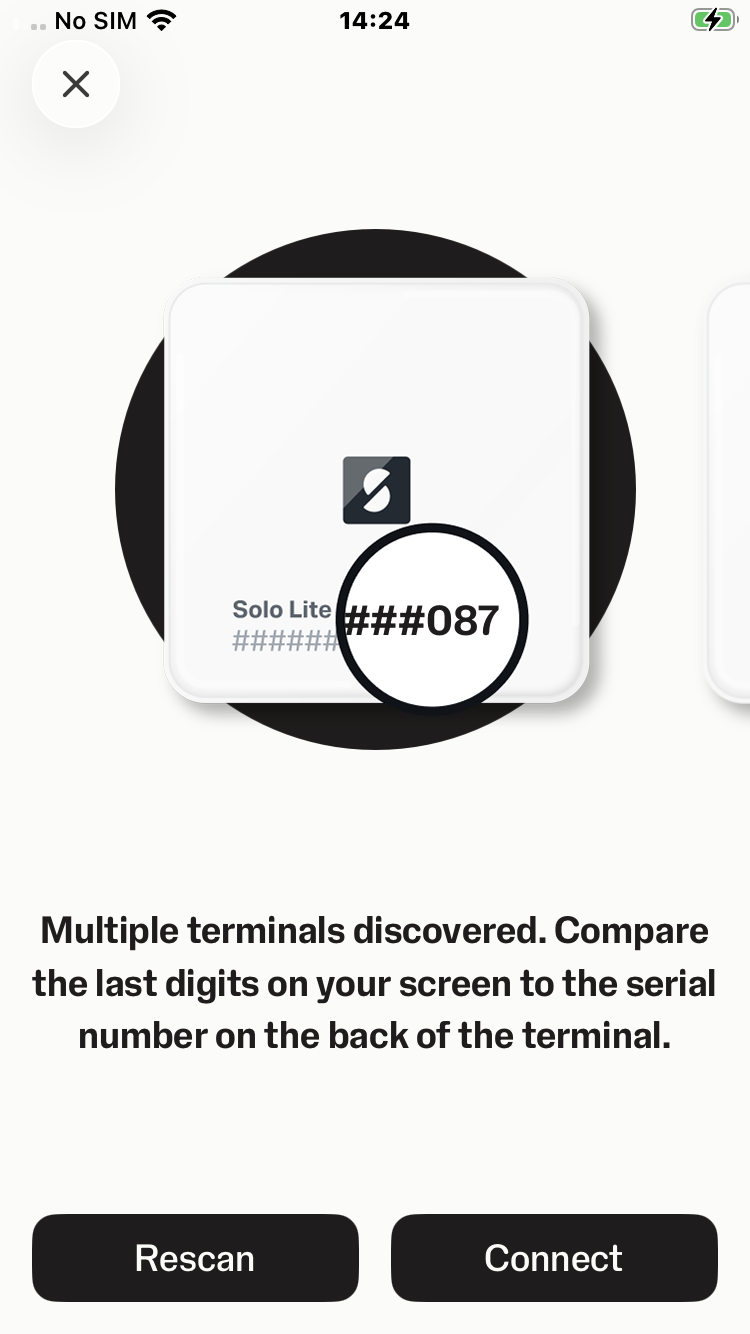
SumUpSDK.presentCardReaderSettings(from: self, animated: true) { success, error in
    if let error {
        print("Could not open reader settings: \(error.localizedDescription)")
        return
    }
    print("Reader settings closed: \(success)")
}
[SMPSumUpSDK presentCardReaderSettingsFromViewController:self
animated:YES
completion:^(BOOL success, NSError *error) {
if (error) {
NSLog(@"Could not open reader settings: %@", error.localizedDescription);
return;
}
NSLog(@"Reader settings closed: %d", success);
}];Reader status
The lastReaderStatus class property returns the most recently reported information about a saved or connected card reader. It returns nil if the merchant is not logged in or no reader has been connected and saved.
The returned SMPReaderStatus object exposes:
batteryLevel— last reported battery level (updated during pairing or transaction processing; freshness varies with reader usage).serialNumber— the serial number printed on the back of the physical reader.readerType— the reader model (SMPReaderType/ReaderType): Unknown, Pin Plus (incl. Pin Plus Contactless), 3G, Air (incl. Air Lite), Solo, Solo Lite. Returns Unknown if no reader has ever been connected, which is the expected value for Tap to Pay on iPhone-only integrations.isActive—YESwhen the reader is currently active or becoming active (e.g. after callingprepareForCheckout:). ReturnsNOif no reader has been connected or the saved reader is currently disconnected.
if let status = SumUpSDK.lastReaderStatus {
    print("Reader: \(status.serialNumber), active: \(status.isActive), battery: \(status.batteryLevel)%")
}
SMPReaderStatus *status = SMPSumUpSDK.lastReaderStatus;
if (status) {
NSLog(@"Reader: %@, active: %d, battery: %lu%%", status.serialNumber, status.isActive, (unsigned long)status.batteryLevel);
}Prepare for checkout
Call prepareForCheckout when a payment is likely to start soon, such as when the merchant enters an amount. It asks the saved Bluetooth reader to wake up. The merchant must be logged in and a reader must already be paired.
SumUpSDK.prepareForCheckout()[SMPSumUpSDK prepareForCheckout];Use the completion-handler variant to check whether the reader woke up before starting checkout:
SumUpSDK.prepareForCheckout { (success: Bool, error: Error?) in
    guard success, let status = SumUpSDK.lastReaderStatus, status.isActive else {
        // reader did not wake — handle accordingly
        return
    }
    // reader is active, proceed to checkout
}
[SMPSumUpSDK prepareForCheckout:^(BOOL success, NSError * _Nullable error) {
if (!success) {
// reader did not wake — handle accordingly
return;
}
SMPReaderStatus *status = SMPSumUpSDK.lastReaderStatus;
if (status.isActive) {
// reader is active, proceed to checkout
}
}];Verify the connection
Check SumUpSDK.lastReaderStatus after pairing. Its isActive property indicates whether the saved reader is active or becoming active.