After authenticating, open the card reader page to pair a supported reader. These examples run in your activity.
Card reader page
Once the merchant is logged in, open the reader settings to:
- Connect to new readers.
- View the saved reader’s battery level, serial number, and firmware version.
- Connect to the last saved reader if it is inactive.
- Update firmware of the reader if available.
- View the saved reader’s name and connection status.
SumUpAPI.openCardReaderPage(MainActivity.this, 4);To integrate with the Activity Result API, use SumUpCardReaderPageContract:
val cardReaderPageLauncher = registerForActivityResult(SumUpCardReaderPageContract()) { result ->
        // Card reader page result
    }
cardReaderPageLauncher.launch(null)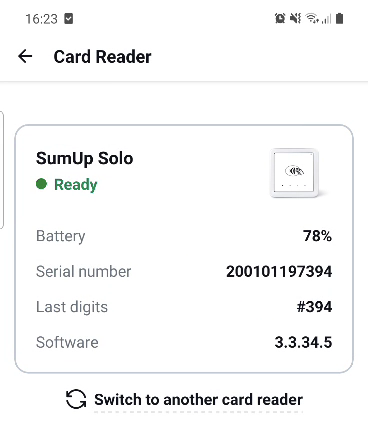
Preparing the SumUp card terminal for checkout
Call prepareForCheckout() before a payment to connect the reader in advance and reduce checkout time.
The merchant must be logged in and a reader must already be paired.
SumUpAPI.prepareForCheckout();Air and Solo readers normally stay connected over Bluetooth after a payment. Use prepareForCheckout() to reconnect if the reader was turned off or moved out of range, or if your app lost focus.
Retrieve connected card reader’s data
You can check the connection status and retrieve details about the saved card reader using the following methods:
isCardReaderConnected(): Returns abooleanindicating whether a card reader is currently connected.getSavedCardReaderDetails(): ReturnsSavedCardReaderDetailswith the reader’s serial number, type, and last known battery percentage, orNoSavedReaderif no reader is saved.
Supported reader types
When the result contains SavedCardReaderDetails, its reader type is one of these constants:
SOLOSOLO_LITEAIRTHREE_GPIN_PLUSUNKNOWN— returned only if the SDK encounters an issue and cannot identify the reader type.
The lastKnownBatteryPercentage is not real-time. It reflects the battery level recorded during the last transaction. As a result, this value may not match the current battery level exactly if the reader has been idle or charged since the last payment.
Verify the connection
Use SumUpAPI.isCardReaderConnected() to check the connection after pairing.