Start a payment after setting up the reader SDK, authenticating, and connecting a reader. For a minimal checkout, use the Android quickstart.
Making payments
Create a payment after logging in. The SDK returns SumUpAPI.Response.ResultCode.ERROR_NOT_LOGGED_IN if no merchant is logged in.
    SumUpPayment payment = SumUpPayment.builder()
            // mandatory parameters
            .total(new BigDecimal("1.12")) // minimum 1.00
            .currency(SumUpPayment.Currency.EUR)
            // optional: to be used only if the card reader supports the feature, what can be checked with `SumUpAPI.isTipOnCardReaderAvailable()`
            .tipOnCardReader()
        // optional: include a tip amount in addition to the total, ignored if `tipOnCardReader()` is present
        .tip(new BigDecimal("0.10"))
            // optional: add details
            .title("Taxi Ride")
            .receiptEmail("customer@mail.com")
            .receiptSMS("+3531234567890")
            // optional: Add metadata
            .addAdditionalInfo("AccountId", "taxi0334")
            .addAdditionalInfo("From", "Paris")
            .addAdditionalInfo("To", "Berlin")
            // optional: foreign transaction ID, must be unique!
            .foreignTransactionId(UUID.randomUUID().toString())  // can not exceed 128 chars
        // optional: skip the success screen
        .skipSuccessScreen()
        // optional: time out for the success screen
        .successScreenTimeout(3)
        // optional: skip the failed screen
            .skipFailedScreen()
            .build();

    SumUpAPI.checkout(MainActivity.this, payment, 2);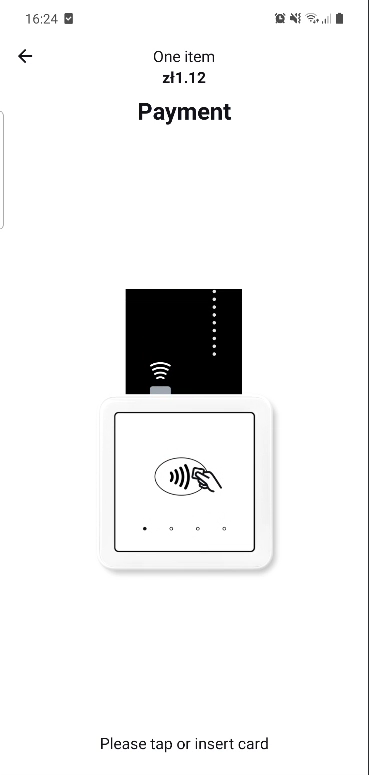
Handling payment result
Override onActivityResult to handle payment results:
   @Override
   protected void onActivityResult(int requestCode, int resultCode, Intent data) {
      if (requestCode == 2 && data != null) {
         // Handle the response here
      }
   }
To integrate with the Activity Result API, use SumUpCheckoutContract:
val checkoutLauncher = registerForActivityResult(SumUpCheckoutContract()) { result ->
        // Checkout result
    }
checkoutLauncher.launch(payment)
Additional checkout parameters
When setting up the SumUpPayment object, the following optional parameters can be included:
Tip amount
A tip amount can be processed in addition to the total using the tip parameter. The tip amount will then be shown during the checkout process and be included in the response. Please note that a tip amount cannot be changed during/after the checkout.
Tip on card reader
This allows the customer to add a tip directly on the card reader, rather than prompting for a tip amount on the Android device.
A tip amount can be prompted directly in the card reader by using tipOnCardReader parameter, if the card reader supports tipping. See the tipOnCardReader payment example(Opens in a new tab) for this field.
Check SumUpAPI.isTipOnCardReaderAvailable() before enabling reader tipping. If the saved reader does not support it, collect a tip in your app and use tip instead.
If you set both options, reader tipping takes precedence and tip is ignored.
Timeout on success screen
Use .successScreenTimeout(int seconds) to configure how long the success screen is displayed. The screen will automatically dismiss after the specified duration if the user has not closed it manually. The value must be greater than 0.
Retry policy configuration
The configureRetryPolicy() feature allows you to set custom retry parameters for transaction result retrieval, using pollingInterval, maxWaitingTime, and disableBackButton.
- Parameters: Both
pollingIntervalandmaxWaitingTimeshould be provided in milliseconds, with default values of 2000 ms and 60000 ms, respectively. SettingdisableBackButtonto true disables the back button during retries. - Timeout: If
maxWaitingTimeelapses with no result, the SDK returnsSumUpAPI.Response.ResultCode.ERROR_UNKNOWN_TRANSACTION_STATUS. Pressing the back button (if enabled) during retries will also trigger this error. - Adjustments: If
pollingIntervalexceedsmaxWaitingTime,maxWaitingTimewill automatically be adjusted to match. Negative values for either parameter default to 0. - Default: If
configureRetryPolicy()is not used, the SDK defaults to returningSumUpAPI.Response.ResultCode.ERROR_TRANSACTION_FAILED.
Querying the transaction status
Set a unique transaction reference and configure result retrieval before starting checkout:
SumUpPayment payment = SumUpPayment.builder()
    .total(new BigDecimal("10.00"))
    .currency(SumUpPayment.Currency.EUR)
    .foreignTransactionId(UUID.randomUUID().toString())
    .configureRetryPolicy(2000, 60000, true)
    .build();
If the SDK returns ERROR_UNKNOWN_TRANSACTION_STATUS, check the payment with the Transactions API before retrying. Pass your foreignTransactionId as the foreign_transaction_id query parameter.
Transaction identifier
Set foreignTransactionId to your order or payment-attempt reference. It must be unique across the merchant account and its sub-accounts, and no longer than 128 characters. Use it to look up the payment through the Transactions API. The result includes this reference under SumUpAPI.Param.FOREIGN_TRANSACTION_ID.
Skip success screen
To skip the success screen shown at the end of a successful transaction, the skipSuccessScreen parameter can be used. When using this parameter, your application is responsible for displaying the transaction result to the customer. In combination with the Receipts API your application can also send your own receipts; see the Receipts API for details. Air Lite readers always show the success screen.
Skip failed screen
To skip the failed screen shown at the end of a failed transaction, the skipFailedScreen parameter can be used. When using this parameter, your application is responsible for displaying the transaction result to the customer. Air Lite readers always show the failure screen.
Verify the payment
Inspect SumUpAPI.Response.RESULT_CODE before marking an order paid, and retain TX_CODE when returned. Use the testing guide to exercise successful, declined, and interrupted payments.