Set up a sandbox merchant account before following your platform’s integration guide. If you have not chosen an integration, compare the available paths.
Prerequisites
- A SumUp merchant account
- A supported reader or Tap to Pay-capable device
- The credentials required for your chosen integration:
- Affiliate Key for Reader SDKs and Payment Switch
- Authorization for Cloud API and Tap to Pay SDK flows
Sandbox Merchant Account
To test without real money, create a sandbox merchant account from the SumUp Dashboard.
- Log in to your SumUp account.
- Open Developer Settings(Opens in a new tab).
- In the Sandbox environment section, create a sandbox merchant account if you do not have one yet.
- Open the account switcher in the Dashboard and select Sandbox Merchant Account.
If you don’t have a sandbox account yet, sign up for a developer account(Opens in a new tab). This starts you with a sandbox merchant account.
If you use native login in the Android or iOS SDK, we recommend creating a managed user account in your sandbox merchant and logging in with that user’s credentials. Alternatively, set your sandbox merchant account as your existing user’s default before logging in. See merchant account setup for native SDK login. Selecting an account in the Dashboard account switcher alone does not select it for native SDK login.
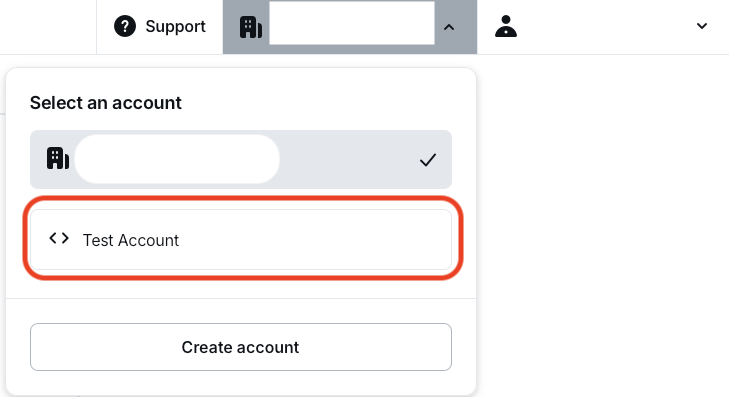
Sandbox accounts do not process real funds. They have a separate merchant ID and show a clear warning in the Dashboard. Follow the in-person payment testing guide for successful payments, declined payments, and the amounts that trigger specific decline reasons.

Users with Multiple Merchant Accounts
If you have access to multiple merchant accounts, native login in the Android and iOS SDKs uses your default merchant account. The SDKs do not offer a merchant account selector.
Recommended: use a managed user account. In the SumUp Dashboard, select the merchant account you want to use, then create a managed user account(Opens in a new tab) for that merchant. Log in through the SDK using the managed user’s credentials. For testing, create the managed user in your sandbox merchant account.
Alternative: set the default merchant account. If you cannot create a managed user account or need to use your existing user account:
- Open Accounts in the SumUp Dashboard(Opens in a new tab), under your user settings.
- Find the merchant account you want to use, open its options menu, and select Set as default.
- Log in through the SDK. If you are already logged in, log out first.
When testing with your existing user account, set your sandbox merchant account as the default before logging in.
You are responsible for verifying that the appropriate account is set as the default merchant account.
Choose Your Path
Reader SDKs
Take your first sandbox reader payment with a complete platform quickstart:
For payments without a card reader, follow Tap to Pay on iPhone or the separate Tap to Pay on Android SDK.
Cloud API
Best for server-driven, web-based, or multi-platform systems using Solo readers.
- Set up authorization for API access.
- Pair or register a Solo reader through the Cloud API.
- Create a checkout for the paired reader.
- Let the reader complete the payment and track the result asynchronously.
Payment Switch
Best for lightweight legacy mobile integrations that hand off checkout to the SumUp app.
- Install the SumUp app on the merchant device.
- Build a Payment Switch request with amount, currency, and a callback URL.
- Open the SumUp app and let it handle the checkout.
- Receive the payment result back in your app.
Use a unique transaction reference such as foreignTransactionId or foreign-tx-id for each payment. That prevents duplicate transaction conflicts and makes reconciliation easier.
Next Steps
- Need an embedded mobile flow? Continue with Reader SDKs.
- Need remote Solo payments? Continue with Cloud API.
- Need app handoff to SumUp? Continue with Payment Switch.