OAuth 2.0
Learn how to request SumUp API access on behalf of other merchants.
OAuth 2.0 lets your application request permission to act on behalf of other SumUp users and access their merchant accounts. It follows the industry-standard OAuth 2.0 protocol and is the right choice for integrations where your application needs delegated access to a merchant’s data or needs to perform actions on their behalf.
If you are building a multi-tenant integration, marketplace, SaaS platform, or any app that connects to multiple merchants, you should use OAuth 2.0.
SumUp exposes two OAuth 2.0 endpoints:
https://api.sumup.com/authorizehttps://api.sumup.com/token
SumUp supports two OAuth 2.0 flows:
- The authorization code flow when an end user grants your application access.
- The client credentials flow when your application authenticates as itself.
Authorization Flows
Section titled “Authorization Flows”Choose the flow that matches how your application obtains access while keeping scope verification requirements in mind.
Authorization Code Flow
Section titled “Authorization Code Flow”This flow implements the RFC 6749 Authorization Code Grant(Opens in a new tab). It lets a SumUp user review the permissions you request and authorize your application accordingly. The requested scopes determine the allowed actions.
Use this flow when your application has a backend that can keep the client secret confidential. The flow separates user authorization from token issuance, so your application never sends the user’s credentials to your own systems.
-
Redirect the user to
https://api.sumup.com/authorizewith the required parameters. -
SumUp shows an authorization prompt describing your application and the scopes requested.
-
After the user approves, SumUp redirects to your Redirect URI with an authorization code and the original
state. -
Your application verifies the returned
stateand exchanges the authorization code for tokens by calling the token endpoint described below. -
Use the
access_tokenin theAuthorization: Bearerheader when calling SumUp APIs.
When building this flow:
- Register the exact redirect URIs your application uses and send the same
redirect_urivalue in the authorization request and token exchange. - Always send a
statevalue and verify that the callback returns the same value before exchanging the code. - Treat the authorization code as short-lived and single-use. Exchange it immediately from your backend and never reuse it.
Example authorization request:
GET /authorize?response_type=code&client_id={CLIENT_ID}&redirect_uri={REDIRECT_URI}&scope=payments%20customers%20payment_instruments&state={STATE} HTTP/1.1Host: api.sumup.comExchange the Authorization Code
Section titled “Exchange the Authorization Code”After the user is redirected back to your application, read the code and state query parameters from the callback URL. If the state matches the value your application originally sent, exchange the authorization code at https://api.sumup.com/token:
POST /token HTTP/1.1Host: api.sumup.comContent-Type: application/x-www-form-urlencoded
grant_type=authorization_code&code={AUTHORIZATION_CODE}&redirect_uri={REDIRECT_URI}&client_id={CLIENT_ID}&client_secret={CLIENT_SECRET}The response contains an access token, refresh token, and metadata such as token lifetime and granted scopes.
{ "access_token": "{ACCESS_TOKEN}", "token_type": "Bearer", "expires_in": 3599, "refresh_token": "{REFRESH_TOKEN}", "scope": "payments customers payment_instruments"}Refresh the Access Token
Section titled “Refresh the Access Token”Access tokens are short-lived. Use the expires_in value to track when the current access token is expected to expire. You can refresh shortly before expiry, or you can wait until an API request fails because the access token is no longer valid. In both cases, request a new token from https://api.sumup.com/token using the OAuth 2.0 refresh token grant:
POST /token HTTP/1.1Host: api.sumup.comContent-Type: application/x-www-form-urlencoded
grant_type=refresh_token&refresh_token={REFRESH_TOKEN}&client_id={CLIENT_ID}&client_secret={CLIENT_SECRET}Your integration should still handle cases where an API request fails because the access token became invalid earlier than expected, for example after revocation or other account changes.
The token endpoint responds with a new access token and may also return a new refresh token:
{ "access_token": "{NEW_ACCESS_TOKEN}", "token_type": "Bearer", "expires_in": 3599, "refresh_token": "{NEW_REFRESH_TOKEN}"}Handle refresh tokens according to standard OAuth 2.0 practices:
- Store refresh tokens securely because they are long-lived credentials.
- After a successful refresh, persist and use the latest
refresh_tokenreturned by the token endpoint. If the response does not include a newrefresh_token, continue using the one you already have. - If refresh fails with an OAuth error such as
invalid_grant, treat the refresh token as no longer usable and restart the authorization code flow. - When refresh fails, do not keep retrying with the same invalid refresh token. Ask the user to authorize again.
Authorization Scopes
Section titled “Authorization Scopes”Scopes restrict what your application may do on behalf of the merchant. Request only the scopes you need. When you omit scopes, SumUp grants the defaults listed below. To obtain additional scopes later, repeat the authorization code flow.
| Scope name | Default | Access Level | Description |
|---|---|---|---|
transactions.history |
yes | merchant | View transactions and transaction history for the merchant user. |
user.app-settings |
yes | merchant | View and modify SumUp mobile app settings for the merchant user. |
user.profile_readonly |
yes | merchant | View profile details of the merchant user. |
user.profile |
no | merchant | Modify profile details of the merchant user. |
user.subaccounts |
no | merchant | View and modify sub-account profiles for the merchant user. |
user.payout-settings |
no | merchant | View and modify payout settings for the merchant user. |
products |
no | merchant | View and modify products, shelves, prices, and VAT rates in the merchant’s product store. |
payments* |
no | feature | Create and process payment checkouts. Requires manual verification by SumUp. |
payment_instruments* |
no | feature | Save customers and tokenize their payment cards. Requires manual verification by SumUp. |
Client Credentials Flow
Section titled “Client Credentials Flow”The client credentials flow follows RFC 6749 Client Credentials Grant(Opens in a new tab). It issues an access token without involving a merchant user. Because no user is associated with the token, the flow does not allow access to merchant-specific data such as transactions or stored customers. You can still process payments for merchants linked to your application.
Request an access token from https://api.sumup.com/token using the client credentials grant parameters. This flow does not return a refresh token.
Register an OAuth Application
Section titled “Register an OAuth Application”To integrate an external application with SumUp, register an OAuth application and generate client credentials. These credentials let you complete the OAuth flows in this guide and obtain access tokens for protected SumUp resources.
Before You Begin
Section titled “Before You Begin”- Prepare a SumUp merchant account with completed account details(Opens in a new tab).
- Choose your application name.
- Prepare one or more redirect URIs. SumUp redirects users to these URIs after authentication and sends the authorization codes you exchange for tokens in the authorization code flow.
-
Log in to your SumUp account(Opens in a new tab). Once logged in, Account appears in place of the Log in button at the top right.
-
Navigate to the OAuth apps page(Opens in a new tab) to create or manage OAuth applications.
Select Create application at the bottom right to define your application.
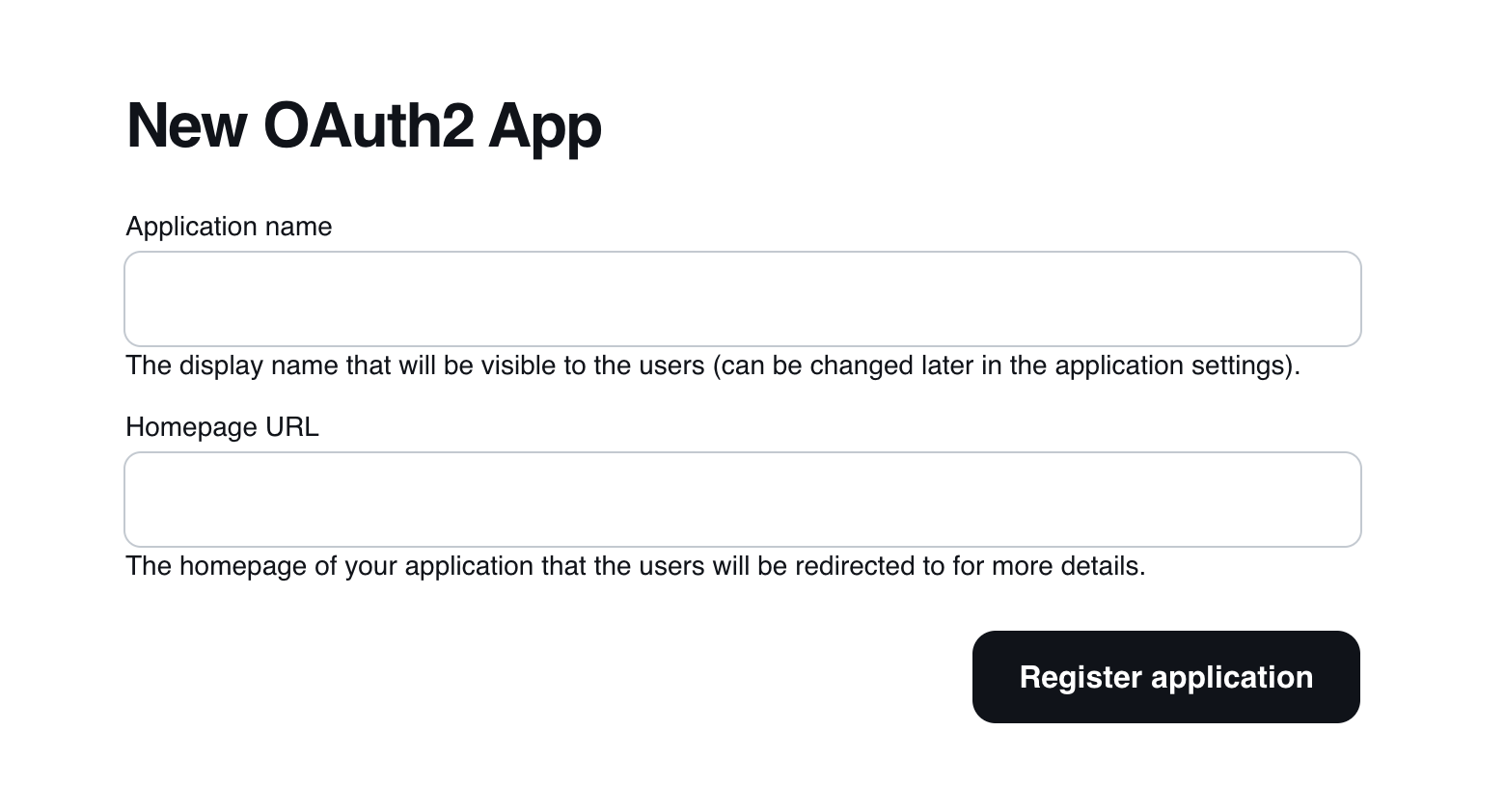
Create OAuth App screen Describe your application, provide its homepage, and select Register application to continue.
You can edit the registered application by selecting it. The edit page lets you update details and add optional information such as a logo, terms and conditions, and privacy policy URLs.
You can also select the scopes your application requires. Each scope includes a short description of the access it grants.
-
On the OAuth apps page(Opens in a new tab), open your application and choose Create client secret.
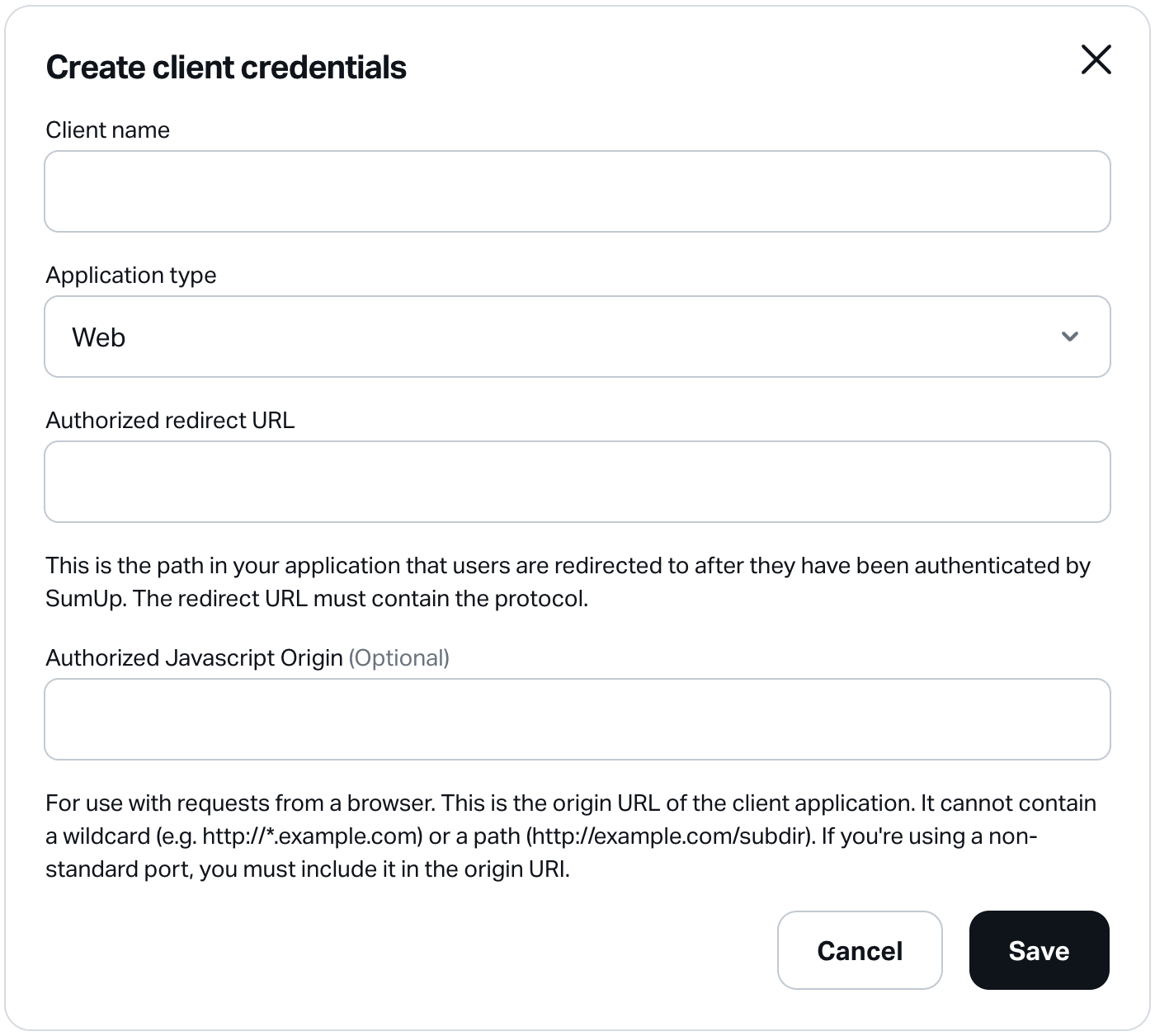
Create new OAuth App credentials form Provide the following details:
Name Required Description Client name Yes A descriptive name for your client application. Application type Yes The type of your client application. Options: Web, Android, iOS, Other. Authorized redirect URL Yes Redirect URL to register for your client application. Specify multiple URLs by separating them with commas. Authorized JavaScript Origin No Origin URI for browser-based web applications. SumUp enables CORS for registered origins. Select Save to generate the credentials. The Client secrets section lists each credential with its name, application type, and client ID.
-
After creation, credentials appear in the Client credentials section of your OAuth application.
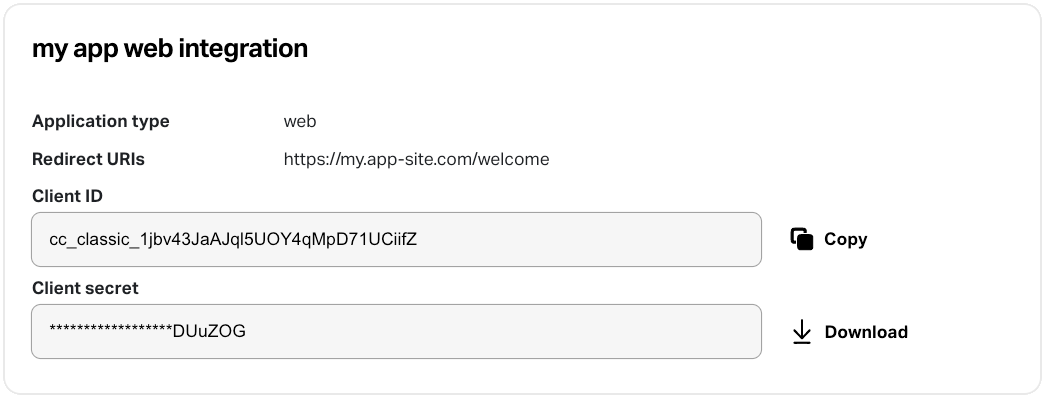
OAuth client credentials section Use the download button to receive a JSON file with the full credential details, for example:
{"id": "CCCFAXYD","name": "SA web client","client_id": "fOcmczrYtYMJ7Li5GjMLLcUeC9dN","client_secret": "717bd571b54297494cd7a79b491e8f2c1da6189c4cc2d3481380e8366eef539c","application_type": "web","redirect_uris": ["https://sample-app.example.com/callback"]}
Result
Section titled “Result”You have registered at least one OAuth application and have downloaded its client credentials. Proceed with the OAuth 2.0 flows to obtain access tokens. Use access tokens from your server to create and manage checkouts, then use a supported checkout integration to collect payment details.